Batch Processing Guide
End-to-end guide to processing many datasets in one go. For an in-depth reference of every Batch tab control, see Batch Processing Tab. For AI-based COR discovery in batch mode, see AI Reconstruction.
Overview
The Batch tab lets you:
process dozens to thousands of datasets with one click
run reconstruction on local or remote GPUs
run Batch AI Reco (try → inference → full, optional TomoLog upload) driven by a shared GPU queue
detect outliers AND fill missing CORs with Fix COR Outliers
auto-skip undersized files within a series
monitor progress and per-file status in real time
Quick start
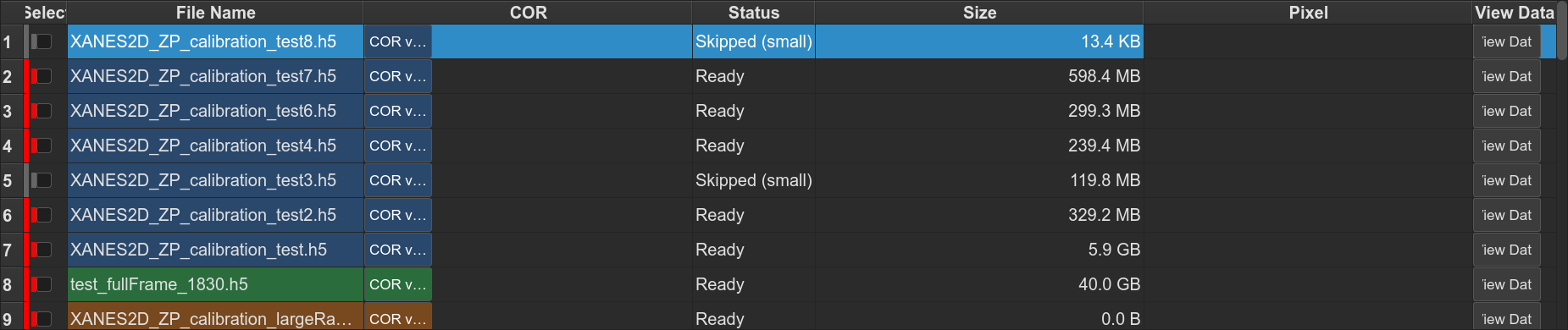
Open the Batch tab.
Click Refresh File List (or use Sync Acquisition during a live scan).
Tick the files you want to process. Shift-click to select a range; Ctrl-click to toggle individual rows.
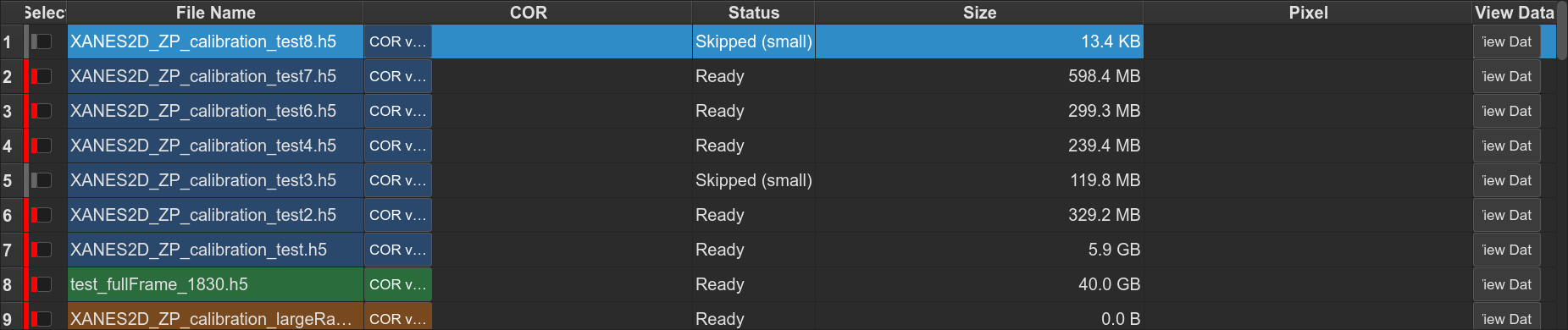
For each row, enter a COR (or use Batch AI Reco later to fill them in automatically).
Click Batch Try, Batch Full, or Batch AI Reco.
Per-file and top-bar COR
Each row has its own COR. The top-bar Try COR field is used as a fallback for any row that does not have one. Concretely, Batch Full / Batch Try use:
effective_COR(row) =
    row.cor_input  if row.cor_input is valid
    else top_bar_cor  if top_bar_cor is valid
    else FAIL (blocked with a clear error)
This means you can leave the top-bar field blank as long as every selected row has its own COR, or vice-versa.
Series-aware operations
Series grouping
Filenames are grouped into series by stripping a trailing numeric index
(^(.*?)[._-]*(\d+)$). For example, sample_001.h5, sample_002.h5
and sample_010.h5 all belong to the sample series regardless of
the length of the index or how many files are in the group.
Series tinting
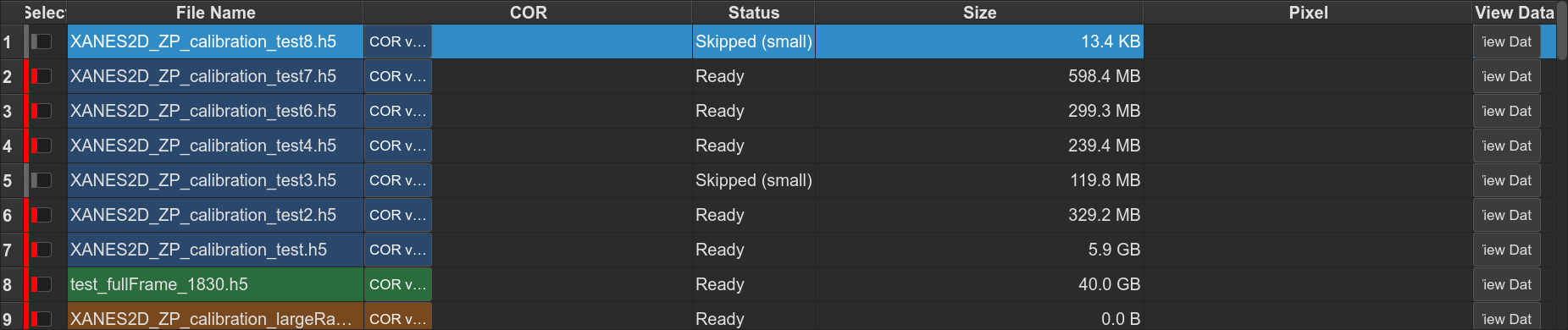
Rows in the same series share a subtle background tint so you can see the grouping at a glance.
Auto-skip undersized files
Within each series, any file whose HDF5 /exchange/data array is
noticeably smaller than its peers is flagged skipped automatically.
This catches aborted acquisitions and avoids failing the whole batch on a
single bad file.
Fix COR Outliers (also fills missing CORs)
One click does two things:
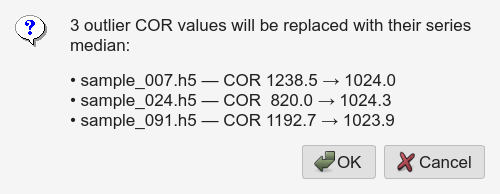
Outlier replacement — within each series, flag any COR that differs from the series median by more than
min(max_delta, max(10, 5·MAD))and replace it with the average of its two nearest in-series neighbours.max_deltais the Max COR delta spinbox (default 50 px).Missing-COR fill — any selected row still empty is filled with the mean of existing CORs in its series across the whole table (donors can be checked or unchecked, anywhere in the list).
See AI Reconstruction for the full algorithm.
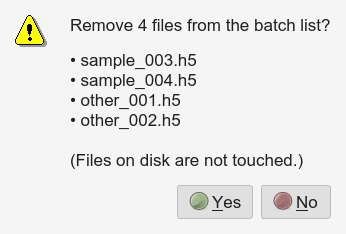
Deleting files from the list
Select one or more rows and click Delete Selected. A confirmation
dialog lists the files first. Deletion removes them from the internal
list (batch_file_main_list) and from the table; it does not
delete anything on disk.
Remote / multi-GPU
The Advanced Config tab sets the remote host and the Number of GPUs.
Batch Try, Batch Full, and every phase of Batch AI Reco all use
the same shared queue: one reconstruction / inference process per GPU
slot at a time, pinned via CUDA_VISIBLE_DEVICES, next file
dispatched the moment a slot frees up.
See GPU Management and SSH Setup for Remote Machines for configuration details.