Main Tab
The Main tab is the single-file workflow: pick a dataset, set parameters, run Try / Full / AI Reco / TomoLog, view results.
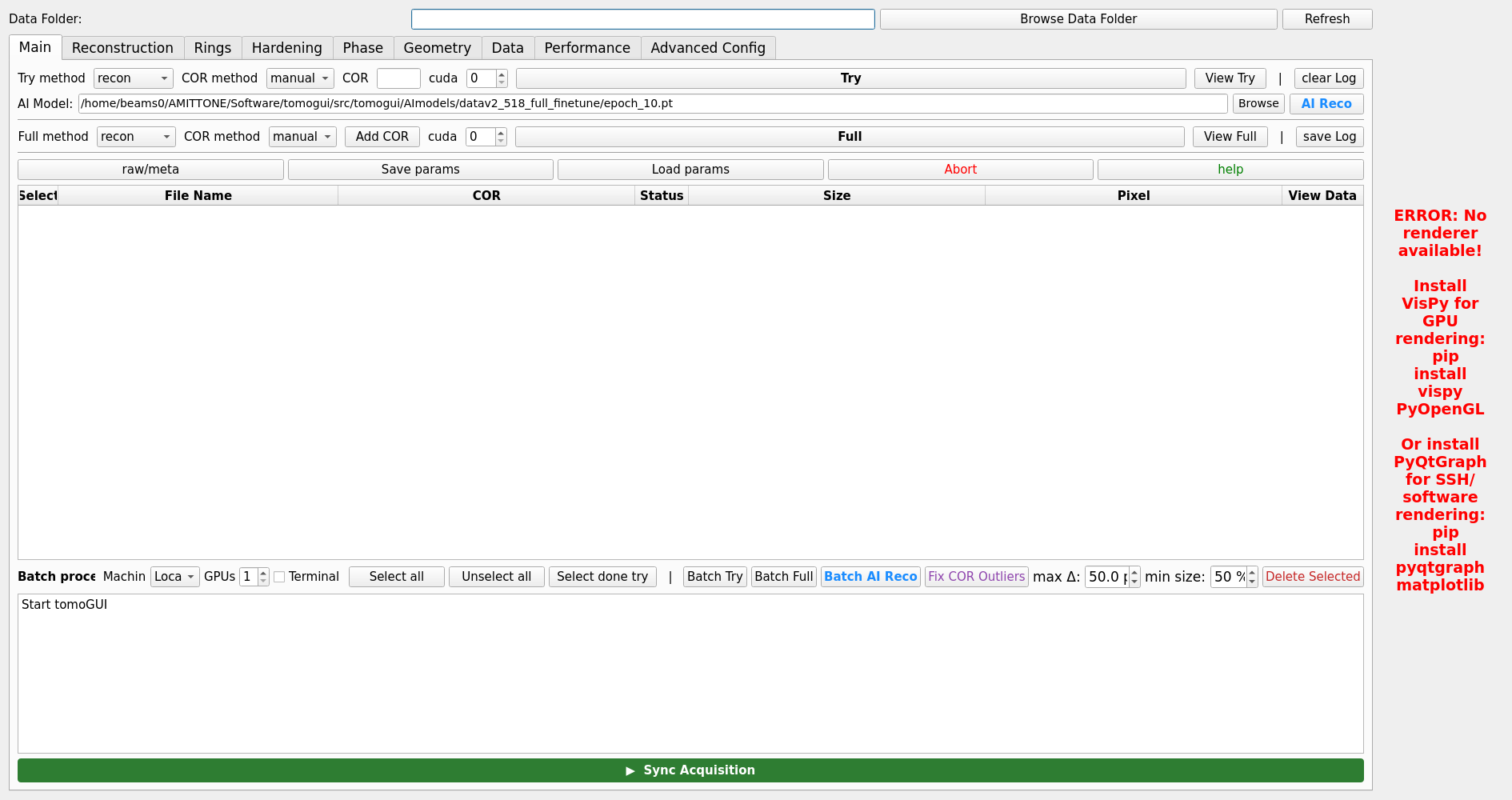
Layout
- Top section — data selection
Browse Data Folder — pick the folder containing projection
.h5files.Projection File — dropdown of HDF5 files in the folder, sorted by modification time (newest first).
Refresh — reload the file list.
Sync Acquisition — keep the dropdown in sync with a live acquisition (HDF5 files appear as they are written).
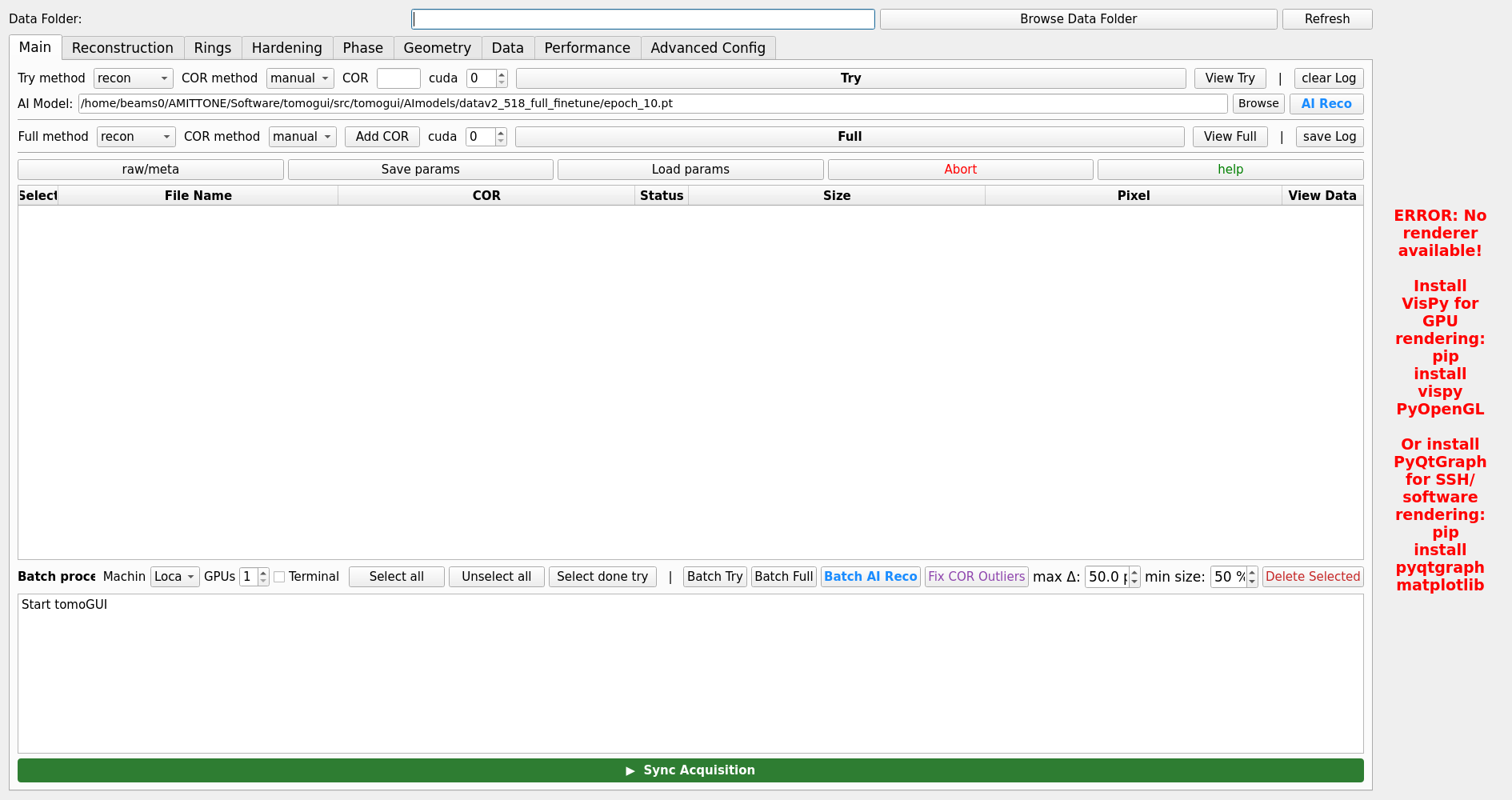
- Middle section — common parameters
Reconstruction method —
reconorrecon_stepsCOR method —
autoormanualCOR (try) — top-bar COR used as a fallback in batch mode
GPU — which CUDA device to use
Bin / nsino-per-chunk / start-row / end-row — common slice / binning options
- Action buttons
Try — runs TomoCuPy try-reconstruction over the current slice range with a grid of candidate CORs. Output:
<folder>_rec/try_center/<dataset>/center*.tiff.View Try — opens the try-grid in the right-hand image panel with the COR slider active.
AI Reco — runs DINOv2 inference over the try-grid TIFFs and populates the COR field with the chosen value (see AI Reconstruction).
Full — runs Full reconstruction with the current COR.
View Full — opens the full reconstruction volume with the slice slider active.
TomoLog — generates a PDF report (see TomoLog Integration).
Reconstruction parameter tabs
Below the Main tab row are per-category tabs that expose every TomoCuPy flag: Recon, Hardening, Phase, Rings, Geometry, Data, Performance. Each tab’s values are persisted to a per-dataset JSON sidecar so loading the same file later restores them.
See Reconstruction Parameters for the full parameter reference.
Right-hand visualisation
The image panel provides:
matplotlib navigation toolbar (pan, zoom, save)
colormap dropdown (gray, viridis, magma, …)
Contrast — Min / Max inputs, Auto (5 – 95 % percentile), Reset
Slice / COR slider — scrubs through try CORs after View Try or through reconstructed slices after View Full
TomoLog panel — quick toggles (contrast min/max, output folder) feeding into the TomoLog dialog
Auto-contrast
The Auto button computes a 5 – 95 % percentile over the current slice and sets Min / Max accordingly. The same rule is re-applied automatically when you switch images via the slider, unless you override Min / Max manually.
Log output
Below the left panel, a colour-coded log shows command status, progress lines from TomoCuPy / AI Reco subprocesses, and warnings / errors.