AI Reconstruction
TomoGUI ships a DINOv2-based automatic center-of-rotation (COR) finder,
available both as a single-file action on the Main tab and as a batch
pipeline on the Batch tab. The same inference code
(tomogui._tomocor_infer) is used in both cases; the batch variant
parallelises across GPUs.
How it works
A Try reconstruction produces a grid of slices at different candidate COR values, saved to
<data_folder>_rec/try_center/<dataset>/center*.tiff.The AI Reco inference step loads those TIFFs, runs the DINOv2-based model, and writes the chosen COR to
<data_folder>_rec/try_center/<dataset>/center_of_rotation.txt.TomoGUI reads
center_of_rotation.txtand updates the per-file COR in the GUI / Batch table. You can then run Full reconstruction with the chosen COR.
Single-file AI Reco
On the Main tab:
Load a dataset and run Try (or use an already-computed try_center).
Click AI Reco.
The chosen COR is written back to the COR input when inference completes.
Batch AI Reco
The Batch tab’s AI Reco button runs the pipeline across every
checked row. All four phases share the same GPU queue
(_run_batch_with_queue), so each GPU processes one file at a time
and the next file is dispatched the moment a slot frees up.
Four checkboxes next to the Batch AI Reco button select which phases actually run:
Try (default on) — Phase A
Infer (default on) — Phase B
Full (default on) — Phase C
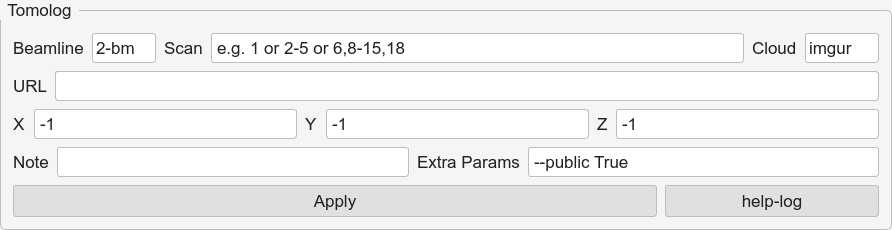
TomoLog (default off) — Phase D
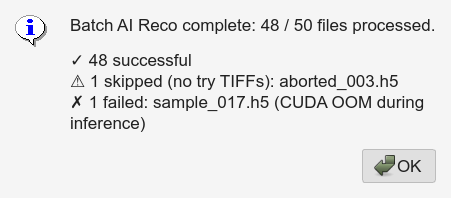
Any combination is valid. The confirmation dialog lists the selected phases before the run starts. Unticking Infer means Phase C (Full) uses whatever CORs are currently in the table (from a previous AI run or set manually). Unticking Try assumes try_center TIFFs already exist for every file.
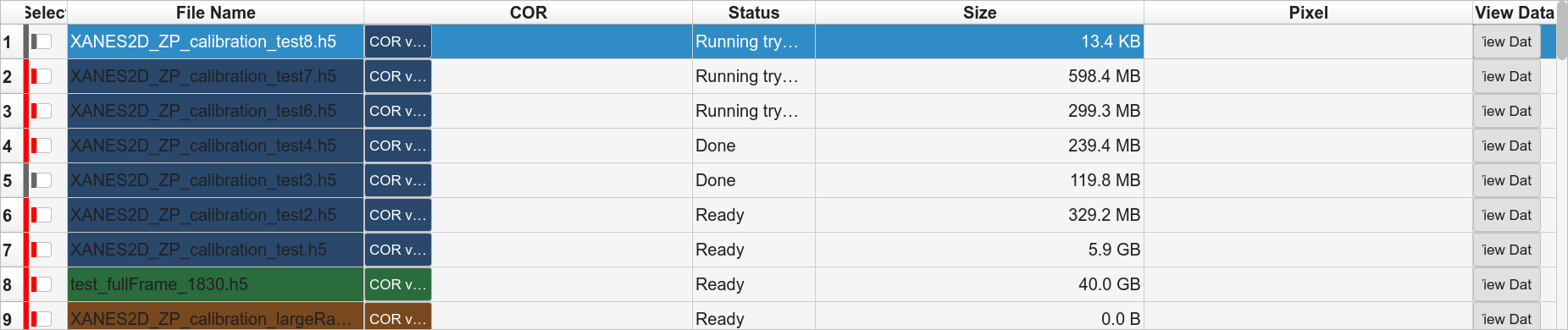
- Phase A — Try
Runs a try reconstruction for each file through the standard batch queue, producing the try-center TIFFs.
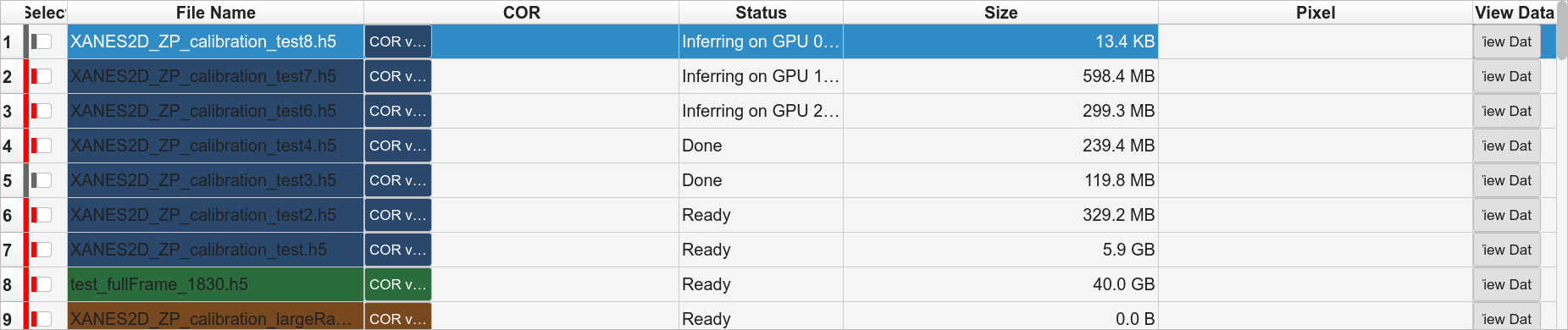
- Phase B — Inference
One file per GPU slot. TomoGUI spawns a
python -m tomogui._infer_workersubprocess per file via the same queue used for Phase A and C, pinned to one GPU viaCUDA_VISIBLE_DEVICES. Each worker streams a line like[infer-worker] OK /data/.../sample_0007.h5 => 1024.3
and the GUI updates that row’s COR and status in real time. A single hung file only blocks its own GPU slot — the queue keeps feeding the other GPUs.
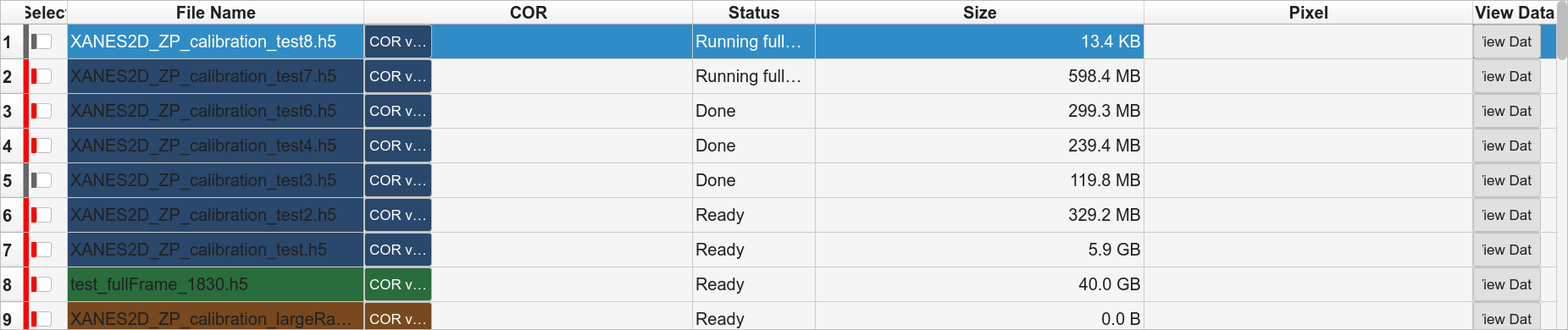
- Phase C — Full
Files that produced a COR in Phase B are dispatched through the same queue for Full reconstruction.
- Phase D — TomoLog upload (optional)
Tick the TomoLog phase checkbox before starting. After Phase C, every file whose Full succeeded is uploaded to TomoLog using the settings in the TomoLog panel on the right side. Uploads run one at a time (network-bound, no need to parallelise). Row status shows Uploading… → Uploaded or Upload failed.
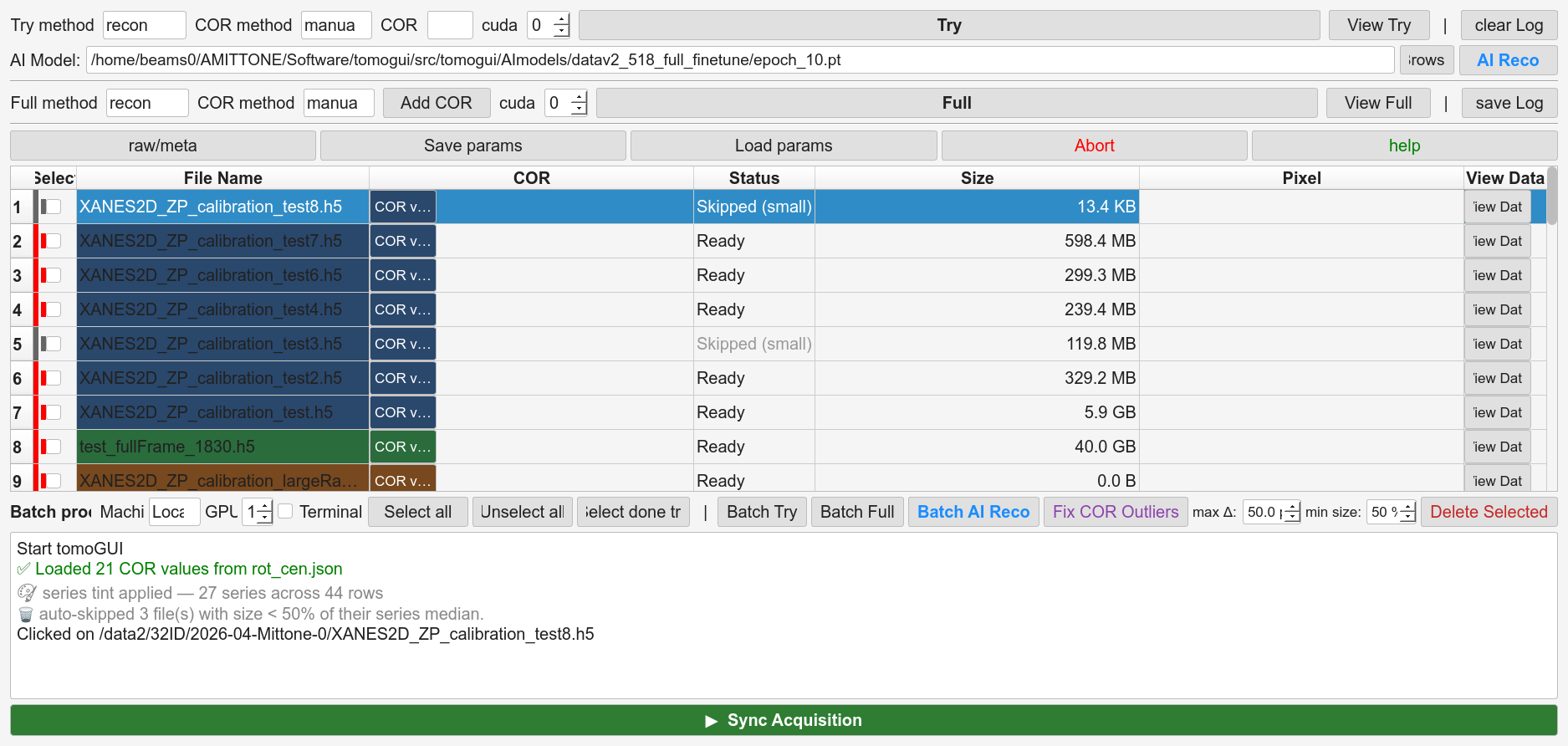
Fix COR Outliers
Runs that use AI Reco (or a mix of manual + AI) occasionally produce a spurious COR for a single file — or leave some files with no COR at all. The Batch tab’s Fix COR Outliers button handles both cases.
Algorithm
Group rows by filename series (^(.*?)[._-]*(\d+)$ on the
filename stem — so sample_001.h5, sample_002.h5, … all share
the sample series).
For each series, two passes:
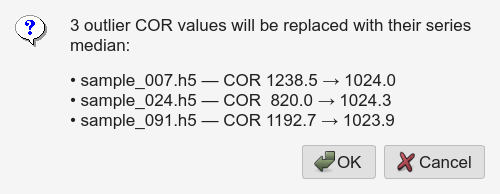
Outlier replacement — compute the series median and MAD. Flag any COR deviating by more than
min(max_delta, max(10, 5·MAD)). Replace each flagged COR with the average of its two nearest non-flagged neighbours by index in the same series.max_deltais the Max COR delta spinbox (default 50 px).Missing-COR fill — any selected row still empty is filled with the mean of all CORs in its series across the whole table (not just the selected rows). A donor file can be anywhere in the list, checked or not. If the series has 0 donors, the row is left empty and reported.
Both passes run in the same click.
Series tinting and auto-skip
Series tinting — each filename series gets its own subtle row background tint in the Batch table.
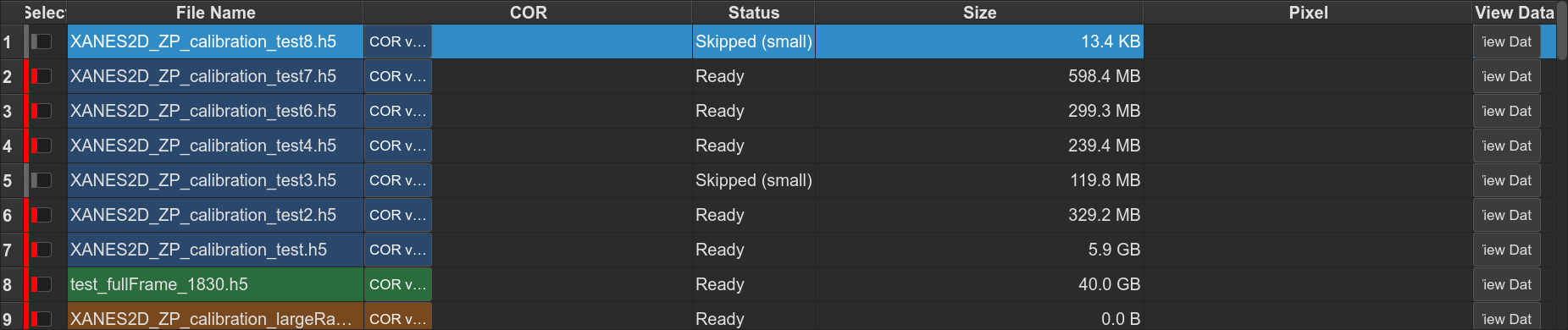
Auto-skip undersized files — within a series, any file whose HDF5
/exchange/data array is noticeably smaller than its peers is marked
skipped automatically (aborted acquisition).
TomoLog auto-contrast
Leaving Min / Max blank in the TomoLog panel triggers a per-file 5 – 95 % percentile auto-contrast. Useful when datasets have very different absolute intensity ranges.